

EN ISO 9241-13:1998
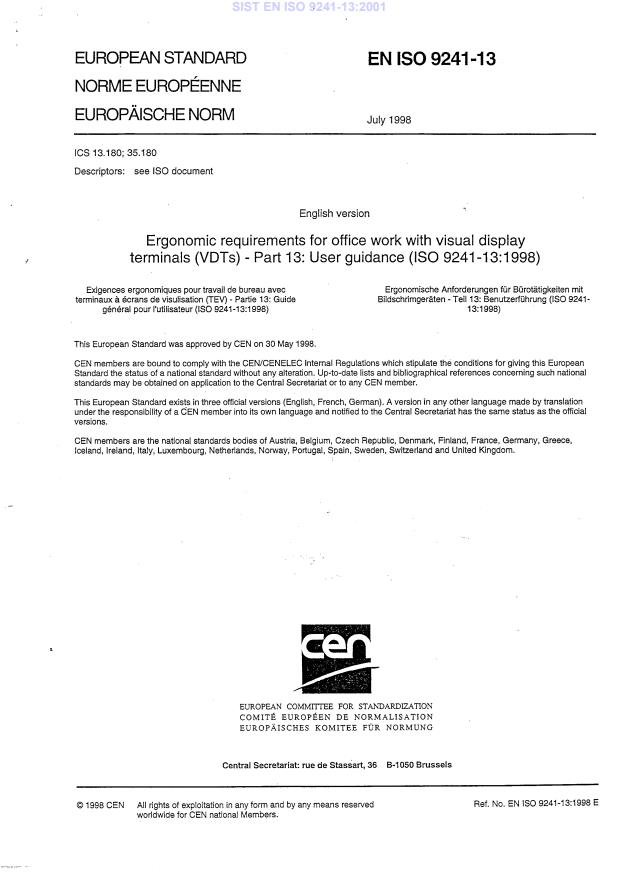
(Main)Ergonomic requirements for office work with visual display terminals (VDTs) - Part 13: User guidance (ISO 9241-13:1998)
General Information
- Abstract
Migrated from Progress Sheet (TC Comment) (2000-07-10): Following BT 125/1992, this part of ISO 9241 will undergo a parallel CEN/ISO ++ voting procedure.
- Status
- Published
- Publication Date
- 14-Jul-1998
- Withdrawal Date
- 30-Jan-1999
- Technical Committee
- CEN/TC 122 - Ergonomics
- Drafting Committee
- CEN/TC 122/WG 5 - Ergonomics of human-computer interaction
- Current Stage
- 6060 - Definitive text made available (DAV) - Publishing
- Start Date
- 15-Jul-1998
- Completion Date
- 15-Jul-1998

Overview
EN ISO 9241-13:1998 (ISO 9241-13:1998) specifies ergonomic requirements for user guidance in software user interfaces for office work with visual display terminals (VDTs). It focuses on guidance elements beyond the regular user-system dialogue - for example prompts, feedback, status information, error management, and on-line help - to improve usability, reduce mental workload, and support users of varying skill levels. The standard is application- and technology-independent and includes evaluation guidance (Annex A) and definitions for terms such as context-sensitive help and browsable help.
Key topics and requirements
- Scope and purpose
- Guidance addresses system-initiated and user-initiated support to promote efficient task completion and error recovery.
- General guidance principles
- Guidance must be distinguishable from other content, non‑disruptive, context‑specific, and under user control when user‑initiated.
- Users should be able to select guidance level according to expertise.
- Phrasing and tone
- Messages should emphasize actions and user control (e.g., “To save your changes, press OK.”), state results before instructions, and prefer positive wording.
- Prompts, feedback, status
- Clear, task-relevant prompts and feedback; status information must indicate current system state.
- Error management
- Covers prevention, system-assisted correction, user recovery, and clear, actionable error messages (avoid generic “Invalid data”).
- On-line help
- Recommendations for browsable and context-sensitive help, presentation, navigation, and system- vs user-initiated help.
- Evaluation and applicability
- Procedures for assessing applicability and conformance are provided; recommendations are to be applied selectively based on user tasks, environment, and technology.
Practical applications and users
Who benefits:
- UX/UI designers and dialogue designers implementing user guidance in applications.
- Usability specialists and HCI practitioners validating interface guidance and error handling.
- Software vendors and procurement teams specifying ergonomic requirements in RFPs.
- Ergonomists and accessibility professionals ensuring guidance reduces cognitive load and supports diverse users.
Typical applications:
- Business and productivity software, enterprise systems, web applications, and any VDT-based tools that require interactive guidance, contextual help, or robust error recovery.
Related standards
EN ISO 9241-13 is part of the ISO 9241 series on VDT ergonomics. Relevant linked parts include:
- ISO 9241-12 (Presentation of information)
- ISO 9241-14 (Menu dialogues)
- ISO 9241-15 (Command dialogues)
- ISO 9241-16 (Direct manipulation)
- ISO 9241-17 (Form filling) These parts provide complementary recommendations for dialogue design, presentation, and interaction.
Keywords: ISO 9241-13, EN ISO 9241-13, user guidance, VDT ergonomics, prompts, feedback, error management, on-line help, usability, human-computer interaction.
Relations
- Effective Date
- 25-Aug-2026
- Effective Date
- 25-Aug-2026
- Effective Date
- 25-Aug-2026
- Effective Date
- 09-Feb-2026
- Effective Date
- 09-Feb-2026
- Effective Date
- 09-Feb-2026
- Effective Date
- 28-Jan-2026
- Consolidated By
ISO 9241-13:1998 - Ergonomic requirements for office work with visual display terminals (VDTs) — Part 13: User guidance - Effective Date
- 12-Feb-2026
Get Certified
Connect with accredited certification bodies for this standard

BSI Group
BSI (British Standards Institution) is the business standards company that helps organizations make excellence a habit.

CIS Institut d.o.o.
Personal Protective Equipment (PPE) certification body. Notified Body NB-2890 for EU Regulation 2016/425 PPE.

Kiwa BDA Testing
Building and construction product certification.
Sponsored listings
Frequently Asked Questions
EN ISO 9241-13:1998 is a standard published by the European Committee for Standardization (CEN). Its full title is "Ergonomic requirements for office work with visual display terminals (VDTs) - Part 13: User guidance (ISO 9241-13:1998)". This standard covers: Migrated from Progress Sheet (TC Comment) (2000-07-10): Following BT 125/1992, this part of ISO 9241 will undergo a parallel CEN/ISO ++ voting procedure.
Migrated from Progress Sheet (TC Comment) (2000-07-10): Following BT 125/1992, this part of ISO 9241 will undergo a parallel CEN/ISO ++ voting procedure.
EN ISO 9241-13:1998 is classified under the following ICS (International Classification for Standards) categories: 13.180 - Ergonomics; 35.180 - IT Terminal and other peripheral equipment. The ICS classification helps identify the subject area and facilitates finding related standards.
EN ISO 9241-13:1998 has the following relationships with other standards: It is inter standard links to ISO 9241-14:1997, ISO 9241-16:1999, ISO 9241-15:1997, ISO 9241-17:1998, ISO 9241-12:1998, EN 82079-1:2012, EN 894-2:1997+A1:2008, ISO 9241-13:1998. Understanding these relationships helps ensure you are using the most current and applicable version of the standard.
EN ISO 9241-13:1998 is available in PDF format for immediate download after purchase. The document can be added to your cart and obtained through the secure checkout process. Digital delivery ensures instant access to the complete standard document.
Standards Content (Sample)
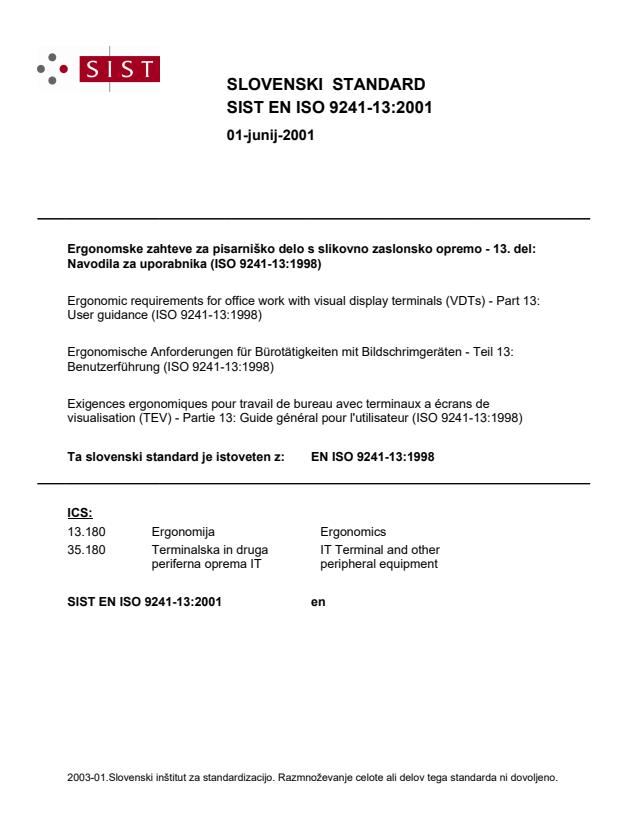
SLOVENSKI STANDARD
01-junij-2001
Ergonomske zahteve za pisarniško delo s slikovno zaslonsko opremo - 13. del:
Navodila za uporabnika (ISO 9241-13:1998)
Ergonomic requirements for office work with visual display terminals (VDTs) - Part 13:
User guidance (ISO 9241-13:1998)
Ergonomische Anforderungen für Bürotätigkeiten mit Bildschrimgeräten - Teil 13:
Benutzerführung (ISO 9241-13:1998)
Exigences ergonomiques pour travail de bureau avec terminaux a écrans de
visualisation (TEV) - Partie 13: Guide général pour l'utilisateur (ISO 9241-13:1998)
Ta slovenski standard je istoveten z: EN ISO 9241-13:1998
ICS:
13.180 Ergonomija Ergonomics
35.180 Terminalska in druga IT Terminal and other
periferna oprema IT peripheral equipment
2003-01.Slovenski inštitut za standardizacijo. Razmnoževanje celote ali delov tega standarda ni dovoljeno.
INTERNATIONAL IS0
STANDARD 9241-I 3
First edition
1998-07-I 5
Ergonomic requirements for office work
with visual display terminals (VDTs) -
Part 13:
User guidance
Exigences ergonomiques pour travail de bureau avec terminaux 2 kcrans
de visualisation (TEV) -
Partie 13: Guidage de I’utiiisateur
Reference number
IS0 9241-13:1998(E)
IS0 9241~13:1998( E)
Page
Contents
1 .
Scope
.........................................................................
2 Normative references
...........................................................................................
3 Definitions
....................................................
4 Application of this part of IS0 9241
..............................................
4.1 Appropriateness of user guidance
..................................................
4.2 Applying the recommendations
................................................................
4.3 Evaluation of products
................................................
5 Common guidance recommendations
..................................................................................
5.1 Description
.........................................................
5.2 General recommendations
..........................................................
5.3 Phrasing of user guidance
..............................................................................................
6 Prompts
..................................................................................
6.1 Description
.....................................................
6.2 Prompting recommendations
7 Feedback .
..................................................................................
7.1 Description
......................................................
7.2 Feedback recommendations
...............................................................................
8 Status information
..................................................................................
8.1 Description
............................................................
8.2 Status recommendations
..............................................................................
9 Error management
..................................................................................
9.1 Description
..........................................................................
9.2 Error prevention
IO
..................................................
9.3 Error correction by the system
IO
.................................................
9.4 Error management by the user
........................................................................
9.5 Error messages
......................................................................................
10 On-line help
10.1 Description .
................................................................
10.2 System-initiated help
10.3 User-initiated help .
...............................................
10.4 Presentation of help information
10.5 Help navigation and controls .
.........................................................................
10.6 Browsable help
..............................................................
10.7 Context-sensitive help
Annex A (informative) Sample procedure for assessing
..................................................................
applicability and adherence
......................................................
Annex B (informative) Bibliography
0 IS0 1998
All rights reserved. Unless otherwise specified, no part of this publication may be reproduced
or utilized in any form or by any means, electronic or mechanical, including photocopying and
microfilm, without permission in writing from the publisher.
International Organization for Standardization
Case postale 56 l CH-121 1 Geneve 20 l Switzerland
Internet iso @ iso.ch
Printed in Switzerland
ii
@ IS0 IS0 9241=13:1998(E)
Foreword
IS0 (the International Organization for Standardization) is a worldwide
federation of national standards bodies (IS0 member bodies). The work of
preparing International Standards is normally carried out through IS0
technical committees. Each member body interested in a subject for which
a technical committee has been established has the right to be represented
on that committee. International organizations, governmental and non-
governmental, in liaison with ISO, also take part in the work. IS0
collaborates closely with the international Electrotechnical Commission
(IEC) on all matters of electrotechnical standardization.
Draft International Standards adopted by the technical committees are
circulated to the member bodies for voting. Publication as an International
Standard requires approval by at least 75 % of the member bodies casting
a vote.
International Standard IS0 9241-I 3 was prepared by Technical Committee
ISO/TC 159, Ergonomics, Subcommittee SC 4, Ergonomics of human-
system interaction.
IS0 9241 consists of the following parts, under the general title Ergonomic
requirements for office work with visual display terminals (VDTs):
- Part I: General introduction
- Part 2: Guidance on task requirements
- Part 3: Visual display requirements
- Part 4: Keyboard requirements
Part 5: Workstation layout and postural requirements
-
- Part 6: Guidance on the work environment
- Part 7: Requirements for display with reflections
- Part 8: Requirements for displayed colours
- Part 9: Requirements for nonkeyboard input devices
- Part 10: Dialogue principles
Pan I 1: Guidance on usability
-
- Part 12: Presentation of information
- Part 13: User guidance
- Part 14: Menu dialogues
- Part 15: Command dialogues
- Part 16: Direct manipulation dialogues
- Pat? 17: Form filling dialogues
Annexes A and B of this part of IS0 9241are information only.
. . .
IS0 9241~13:1998( E) @ IS0
Introduction
This part of IS0 9241 deals with user guidance aspects of software user
interfaces.
The main purpose of user guidance is to aid the user ’s interaction with the
system by
- promoting efficient system use;
- avoiding unnecessary mental workload;
- providing support to users to manage error situations; and
- providing support for users of different skill levels.
This part of IS0 9241 serves the following types of users:
- the designer of the user guidance, who will apply this part of
IS0 9241 during the development process;
- designers of user guidance development tools to be used by dialogue
designers;
- the buyer, who will reference this part of IS0 9241 during the product
procurement process, and whose end-users will gain from the
potential benefits provided by this part; and
- those responsible for ensuring that products meet the recommen-
dations in this part of IS0 9241.
The ultimate beneficiary of this part of IS0 9241 will be the end-user at the
visual display terminal (VDT). It was the needs of this user that provided
the ergonomic recommendations in this part of IS0 9241. Although it is
unlikely that the end-user will read this part or even know of its existence,
its application should provide user interfaces that are more usable,
consistent and that enable greater productivity.
Application of this part of IS0 9241 involves an understanding of the
intended user, the user environment and tasks. User tasks should be listed
and key tasks, defined as the most frequent and important tasks, should be
explicitly identified.
Recommendations on how to use this part of IS0 9241 can be found in
Informative Annex A.
For practical reasons, the following structure has been chosen for
presenting the user guidance recommendations:
- common guidance recommendations (see clause 5),
- prompts (see clause 6),
- feedback (see clause 7),
- status information (see clause 8),
- error management (see clause 9),
- on-line help (see clause IO).
iv
INTERNATIONAL STANDARD o ~so IS0 9241:13:1998(E)
Ergonomic requirements for office work with visual display
terminals (VDTs) -
Part 13:
User guidance
1 Scope
This part of IS0 9241 provides recommendations for user guidance attributes of software user interfaces and their
evaluation. User guidance as defined in this part of IS0 9241 is information additional to the regular user-computer-
dialogue that is provided to the user on request or is automatically provided by the system. In addition to the general
guidance provided in this part of IS0 9241, recommendations concerning dialogue-specific user guidance are
provided in IS0 9241-I 2, IS0 9241-I 4, IS0 9241-l 5, IS0 9241-16 and IS0 9241-I 7.
This part of IS0 9241 is applicable to interaction components that aid users in recovering from error conditions.
User guidance as covered by this part of IS0 9241 includes recommendations specific to prompts, feedback and
status, error management and on-line help as well as general recommendations common to all these types of user
guidance.
While user support can be provided via other means (e.g., on-line tutorials, on-line documentation, intelligent
system performance aids) these types of support are not addressed by this part of IS0 9241-13.
The recommendations in this part of IS0 9241 are formulated to be independent of applications, environment, or
implementation technology. They correspond to typical situations involving special needs for information and
actions.
As with other parts of IS0 9241, this part of IS0 9241 can apply in all or in part. For example, applications that do
not have browsable help would not need to follow recommendations concerning this class of user guidance.
2 Normative references
The following standards contain provisions which, through reference in this text, constitute provisions of this part of
IS0 9241. At the time of publication, the editions indicated were valid. All standards are subject to revision, and
parties to agreements based on this part of IS0 9241 are encouraged to investigate the possibility of applying the
most recent editions of the standards indicated below. Members of IEC and IS0 maintain registers of currently valid
International Standards.
IS0 9241-l 2: -1) Ergonomic requirements for office work with visual display terminals (VDTs) - Part 12:
Presentation of information.
IS0 9241-l 4:1997, Ergonomic requirements for office work with visual display terminals (VDTs) - Part 14: Menu
dialogues.
IS0 9241.15:1997, Ergonomic requirements for office work with visual display terminals (VDTS) - Part 15:
Command Dialogues.
-1) Ergonomic requirements for office work with visual display terminals (VDTS) - Part 16: Direct
IS0 9241-l 6:
manipulation dialcgues.
IS0 9241-I 7: -1) , Ergonomic requirements for office work with visual display terminals (VDTs) - Part 17: Form
filling dialogues.
1) To be published.
IS0 9241=13:1998(E)
3 Definitions
For the purposes of this part of IS0 9241, the following definitions apply.
3.1 browsable help: Help in which access to help is independent of the current task context. Help topics can be
accessed in the order and sequence desired by the user.
3.2 context-sensitive help: Help in which the help text or range of help topics is derived from the contextual
information associated with the user ’s task, user ’s last input, selected object, current location or the current mode
within the system or application.
Errors can include navigation errors,
3.3 error: Mismatch between the user ’s goal and the response of the system.
syntax errors, conceptual errors, etc.
error explanation, or error recovery.
3.4 error management: Means to support the user in error detection,
3.5 error prevention: Means to minimize the probability of the occurrence of errors.
3.6 feedback: Output presented to the user by the system in reaction to the user ’s input or a system event.
3.7 guidance: Dialogue elements that aid the users in achieving their intended results. Guidance can aid users in
discovering the capabilities of a system, enable the users to generate a plan for accomplishing their goals, assist
the users in accomplishing a goal, or help the users to manage error situations.
3.8 on-line help: Additional user guidance information beyond prompting, feedback, status, and error messages
that can be obtained at the user ’s initiative or at the initiative of the system. Information about features of the system
and dialogue and how they can be used to aid the user in completion of his/her task(s) is typically provided.
3.9 prompt: System output requesting input from the user.
3.10 status information: Information indicating the current state of the system.
3.11 system-initiated guidance: Guidance that is presented to the user by the system when the user has not
taken an explicit action to request the guidance.
NOTE System-initiated guidance includes, for example, prompts, feedback, status information, etc.
3.12 user guidance: Additional information beyond the regular user-computer dialogue that is provided to the user
on request or is automatically provided by the system.
3.13 user-initiated guidance: Guidance that is presented to the user only when the user has taken an explicit
action to request the guidance.
4 Application of this part of IS0 9241
4.1 Appropriateness of user guidance
User guidance is appropriate to all styles of interaction, types of dialogues and contexts, to help users in
accomplishing their tasks.
4.2 Applying the recommendations
General ergonomic design objectives are provided in Clauses 5 to 10. The individual recommendations aimed at
achieving these objectives should be applied within the specific context for which they are relevant (e.g., particular
kinds of users, tasks, environments, technology). The format for the individual recommendations is: statement of
the recommendation, example (if appropriate), and notes (if appropriate). Examples provided for the various
recommendations generally depict an implementation that embodies the recommendation. Some examples also
indicate preferred solutions.
@ IS0 IS0 9241=13:1998(E)
Individual recommendations should be evaluated for their applicability and, if judged to be applicable, should be
implemented in the relevant user guidance unless there is evidence that to do so would cause deviation from the
design objectives or would result in an overall degradation in usability. When determining applicability, the
recommendations generally should be evaluated in the order presented in the relevant clause or subclause. In
judging whether applicable recommendations have been met, evaluators should evaluate the product or observe
representative users of the product in the context of accomplishing the user ’s tasks via the user guidance. Sample
procedures which support the determination of applicability and for determining whether a recommendation has
been followed are provided in Annex A.
4.3 Evaluation of products
If a product is claimed to have met the applicable recommendations in this part of IS0 9241, the procedure used in
establishing requirements for, developing, and/or evaluating, the user guidance shall be specified. The level of
specification of the procedure is a matter of negotiation between the involved parties.
Users of this part of IS0 9241 can either utilize the procedures provided in Annex A, or develop another procedure
tailored to their particular development and/or evaluation environment.
5 Common guidance recommendations
5.1 Description
This clause addresses general recommendations that are applicable to user guidance (i.e., prompts, feedback,
status, error management, on-line help).
5.2 General recommendations
52.1 User guidance information should be readily distinguishable from other displayed information. (For
recommendations concerning the presentation of visual information using graphical objects and coding techniques,
,
see IS0 9241-17: -*) Clauses 6 and 7).
EXAMPLE: When a user requests guidance, a separate dialogue box appears which has a different background
colour.
5.2.2 If system-initiated user guidance messages are no longer applicable to the current system state or user
actions, the information should be removed from the display.
5.2.3 User-initiated guidance should stay under the control of the user.
52.4 User guidance messages should provide the user with specific information relative to the task context rather
than generic messages.
EXAMPLE: Days must be in the range from 1 to 31
instead of
Invalid data.
5.2.5 User guidance should not disrupt the user ’s task and the continuation of the dialogue.
2) To be published.
IS0 9241=13:1998(E) 0 IS0
5.2.6 Distinctive message or coding techniques should be consistently used to alert users to conditions that require
special attention.
52.7 Users should be able to specify the level of guidance they want if interaction with the system varies on the
basis of user expertise.
5.3 Phrasing of user guidance
5.3.1 The result of an action should be stated before describing how to execute the action.
EXAMPLE: To clear the screen, press RETURN.
instead of
Press RETURN to clear the screen.
5.3.2 User guidance messages should be phrased to enhance the perception of user control rather than system
control of the task.
EXAMPLE: To save your changes, press OK.
instead of
The system will only save your changes, if you press [OK].
5.3.3 In general, user guidance messages should be worded as positive statements to emphasize ‘what to do’
rather than ‘what to avoid ’. However, negating statements should be used for denoting exceptions to rules or to
emphasize a point.
EXAMPLE: To remove characters to the left of the cursor use the ‘backspace key ’, not the ‘delete key ’.
EXAMPLE: Do not use the tape drive when the backup program is running
instead of
Data can be stored on the disk or tape drive except when the backup program is active.
5.3.4 User guidance should be phrased using consistent grammatical construction.
The available options are: The available options are:
EXAMPLE:
display file display file
print file file print
instead of
delete file deletion of a file
5.3.5 If user guidance contains written or spoken text, it should be stated in short, simple sentences.
5.3.6 User guidance should be stated in the active voice unless it conflicts with the users’ national language.
5.3.7 User guidance should use terminology that the user population typically uses to perform its tasks.
NOTE: Use of user terminology avoids the use of designer terminology which may not be appropriate for the task.
5.3.8 User guidance messages should be worded using terms which are emotionally neutral, such that
- they are not patronizing to the user,
- human characteristics are not inappropriately implied, and
- they do not contain inappropriate attempts at humour.
@ IS0
IS0 9241-l 3: 1998(E)
6 Prompts
6.1 Description
Prompts indicate that the system is available for input. Prompts can be generic or specific. Generic prompts indicate
that the system is waiting for user input, but do not explicitly indicate the type of input expected (e.g. DOS ‘Y ’, the
UNIX command prompt “$ “). Specific prompts indicate that the system is waiting for user input as well as direct the
user to the type of input that is valid at this point in the dialogue (e.g. Type the name of the file to be loaded:).
6.2 Prompting recommendations
Many of the recommendations for prompts are equally applicable to ‘labels’ as they appear in form filling dialogues.
For more information, see IS0 9241-17:--3), 5.3.
6.2.1 Prompts should indicate implicitly (generic prompt) or explicitly (specific prompt) the types of input that will be
accepted by the dialogue system.
6.2.2 Specific prompts should be displayed under the following conditions. As more conditions are met, the greater
the applicability of specific prompts.
a) Users are unfamiliar with the system and will need information on how to proceed.
b) There is a limited set of valid inputs.
c)Task requirements (e.g. complicated task, task requires sequenced steps, or need to minimize errors) suggest
that user inputs should be guided.
6.2.3 Generic prompts should be displayed under the following conditions. As more conditions are met, the greater
the applicability of generic prompts.
a) Conditions for specific prompts are not applicable.
b) There are many valid user inputs and there is insufficient display space to provide information on all alternatives.
NOTE When generic prompts are used, it is important to take into account different types of users (i.e., those who are familiar
with prompts and those who are not).
6.2.4 The user should be able to obtain on-line help related to prompts that are complex or that the user does not
understand.
6.2.5 If a task requires a particular sequence of user actions, prompting for the currently required step should be
provided. (See also IS0 9241-I 2:-3), 6.2.5.)
6.2.6 Prompts for data/command entry should be displayed in a standard location next to the entry field.
EXAMPLE: In languages that are written from left to right, the prompt is presented to the left of the entry field.
6.2.7 If a default value has been defined for user-prompted input, that value should be visually indicated. (See also
IS0 9241-I 7: -s), Clause 6.1.3.)
EXAMPLE: How many windows should be visible at login?
6.2.8 Prompts should provide cues for the type of data to be entered by formatting data entry fields consistently and
distinctively. (See also IS0 9241-I 7:-3), 5.3.7.)
/ /
EXAMPLE: Enter the current date:
---
3) To be published.
IS0 9241=13:1998(E)
6.2.9 To facilitate response to prompts, the cursor should be automatically positioned in the input field at a location
that is consistent with the type of input requested.
the cursor is positioned at the right-most
EXAMPLE: Numeric data arranged in columns are right justified, i.e.,
position in the input field and numbers move to the left as they are typed. Textual data are left justified, i.e., the
cursor is positioned at the left-most position in the input field and the cursor moves to the right as characters are
typed.
7 Feedback
7.1 Description
Feedback provides information in response to the user ’s input. The type of feedback varies with changes in task,
system state and user input.
Examples of feedback include
echoing characters on the screen as the user types them;
-
- presentation of a message indicating a command has been received and is being processed;
- the visible change in a graphical data area after a command to modify its elements;
- presentation of a help window when the user presses a help key;
- moving the pointer on the screen to track mouse movement.
7.2 Feedback recommendations
7.2.1 Every input by the user should produce timely and perceptible feedback from the system. (See also
IS0 9241-I 5:1997, 7.9 and IS0 9241-17:-4), 7.1.)
EXAMPLE: Key entries are echoed in the display within 150 ms of the user typing them, unless there are security
requirements for not echoing characters.
7.2.2 Feedback associated with normal task performance should be non-intrusive and should not distract the user
from the task.
NOTE This recommendation does not apply to user guidance messages, like delete confirmations or alerts relating to safety
critical events, that need to intrude into the user ’s task flow in order to elicit a considered response by the user.
7.2.3 The type of feedback given by the system should take into account:
a) User characteristics: the feedback modality should be compatible with the capabilities of the user (e.g. a
system designed for blind individuals should provide feedback through speech in addition to vision).
b) Population variability: feedback for novice users should contain more explanatory information than feedback for
experienced users.
c) Task information requirements: feedback should be compatible with the attention demands of the task.
EXAMPLE: The task requires users to look away from the display; therefore a type of feedback other than visual
display is presented (e.g., voice, auditory tone).
d) System capabilities: the presentation of feedback should not be dependent on the availability of specific
hardware (e.g. do not use speech output as the only feedback if some systems do not have speech output
capabilities).
4) To be published.
@ IS0
IS0 9241=13:1998(E)
7.2.4 The system should clearly indicate its state whenever the state (or mode) changes.
EXAMPLE: When the user types an interrupt sequence into the system, an indication of the new system state is
provided.
7.2.5 When a user selects a displayed item in order to perform some operation on it or to execute it, the item
should be highlighted. (See also IS0 9241-I 4:1997, 7.1.4.)
7.2.6 If servicing of remote requests is provided (e.g. print a document on a remote printer), a message should
be provided on the local machine to confirm that the remote service request is being processed. (See also
9241-l 7: -y 7.4.)
7.2.7 Feedback on completion of user requests should be provided. (See also IS0 9241-17:-5), 7.5.)
7.2.8 If completion of a user request is not immediate, an indication should be provided by the dialogue system that
the request has been accepted. The dialogue system should also indicate when the request has been successfully
completed.
EXAMPLE: Users are provided with an indication when processing is complete. When an operation will take longer
than 5 s to complete, an hourglass is shown to indicate that the operation is still in progress.
7.2.9 System response (feedback) to user entries should be appropriate so that it does not distract the user from
the task (i.e. neither too slow nor too fast).
EXAMPLE 1: Feedback relative to moving to a new form field is given in under 250 ms.
EXAMPLE 2: Movement of a pointer on a display is visible within 100 ms of the movement of the pointing device
(e.g. mouse).
8 Status information
8.1 Description
Status is user guidance information that indicates the current state of components in the system hardware and/or
software. It includes information about available and active applications, modes, processes and hardware, etc.
Status information can be presented at different levels of detail. The level of detail in status information needs to be
appropriate to the user ’s current task. While all users can benefit from status information, it can provide a greater
benefit to more experienced users who have learned enough about the system to adjust their actions to changes in
the system state.
Examples of areas in which status information is provided include:
- networking or mail: summary of requested messages, other systems, or users available for communication;
- remote or local devices: queued documents waiting for printout, device malfunctions, and print completion;
- multi-tasking: summary of active processes or system load;
- currently selected items;
- current state of controls (e.g. radio buttons, check boxes).
5) To be published.
IS0 9241-l 3:1998(E)
Status, as handled in this part of IS0 9241, does not include information associated with error conditions.
8.2 Status recommendations
8.2.1 Status information should be continuously presented under the following conditions. As more conditions are
met, the greater the applicability of continuously presenting status information.
a) The information is relevant to the user ’s current task, and delays in the presentation of the information will lead
to task errors, performance decrements or serious system failures.
b) The information is continuously relevant to the user ’s current task and the system has sufficient resources (e.g.
processing capabilities and display space) to accommodate both status and task information.
8.2.2 Status information should be automatically presented under the following conditions. As more conditions are
met, the greater the applicability of automatically presented status information.
a) The status information is relevant to the user ’s task, and its automatic presentation is not likely to disrupt user
task performance.
b) The status information is the only feedback provided for a user action (e.g. an object changes colour to show it
has been selected).
c) Users have minimal training or experience with the system or application and do not know how to request
status information.
d) Use of the system or application is infrequent.
Changes in the system state affect the response of the system to user input (e.g. change in the availability of
e)
peripheral devices).
8.2.3 Status information should only be presented in response to a user request under the following conditions. As
more conditions are met, the greater the applicability of presenting status information only in response to user
request.
a) The information is not relevant to the user ’s current task.
b) The information is non-critical and useful for only a subset of the potential users.
c) The information is only occasionally needed to guide user responses.
d) The status information is non-critical and rapidly changing and frequent changes in displayed information are
likely to be disruptive to the user ’s task.
8.2.4 A consistent display (window) location should be used for each type of status information.
EXAMPLE: Whenever new mail is received, status information is presented in a box in a specified area, (e.g., in the
upper right-hand corner of the screen).
8.2.5 If user input is disabled by the dialogue system (e.g. keyboard locked), the user should be given a cue (visual
or auditory) indicating this state.
8.2.6 If a system or application has modes (i.e. a specific user action has different results depending on the state of
the system), users should be able to discriminate the current mode from other modes.
1: In a task in which the user cannot see the display across mode changes, auditory cues are provided
EXAMPLE
to discriminate modes.
EXAMPLE 2: The “off” or “on” status of a check button is indicated in a graphic that is placed to the left of the check
button label.
@ IS0
IS0 9241-l 3: 1998(E)
9 Error management
9.1 Description
Errors in human computer interaction include:
- system malfunctions due to a software or hardware failure (e.g. a problem with the disk drive);
user inputs not recognized by the system;
-
data entry or logical errors on the part of the user;
-
- unexpected consequences resulting from user inputs.
Errors can be detected either by the system or by the user. System detection is only possible in cases of
malfunction or logical inconsistencies and conflicts. User-detected errors are those which can only be detected by
the user.
9.2 Error prevention
9.2.1 Error prevention is always appropriate but it should be used particularly under the following conditions. As
more conditions are met, the greater the applicability of error prevention.
a) The user has limited experience with the system or accesses the system on an intermittent basis.
b) The user is likely to be interrupted during the task.
c) The task has critical consequences for errors, or if errors are frequently occurring.
d) The task requires correctly sequenced input from users.
e) The system has multiple modes.
9.2.2 If the system uses modes, user errors should be minimized by
mapping the same user input to a function key with similar or related outcomes across modes;
a)
EXAMPLE: Mode 1: F4-List Directory
instead of Mode 1: F4-List Directory
Mode 2: F4-List Files Mode 2: F4-Change Windows
b) avoiding reassignment of user inputs to functions that are destructive in nature.
EXAMPLE: Function key F4 is not re-assigned to Delete if it was previously assigned to File.
9.2.3 If system failures can be anticipated, an indication of the potential problem should be provided before the
failure occurs.
EXAMPLE: A warning message is given that the system is running out of memory space and may not be able to
complete the transaction.
9.2.4 When users request to exit a program or logoff, the system should check file status and pending transactions.
If user data would be lost or if a pending transaction will not be completed, a message requesting user confirmation
should be displayed giving indication of which data would be lost or which transaction would be aborted.
9.2.5 Users should be able to reverse the most recent operation if the task permits and if it is beneficial to user
performance (e.g. undo). If user actions can have destructive consequences and cannot be undone, a warning or
confirmation message should be provided to alert the user to consequences before executing the requested action.
0 IS0
IS0 9241=13:1998(E)
Users should be provided with a
9.2.6 Users should be able to modify or cancel input prior to executing an action.
means to suspend and cancel operations in progress, if it is possible without damage to the system or to data.
9.3 Error correction by the system
9.3.1 Error correction by the system should be used under the following conditions, as more conditions are met, the
greater the applicability of error correction by the system.
a)
The error results from hardware and/or software failure where the system has access to a potential solution to
the error.
b) The error correction alternatives are limited, well defined, and there is no ambiguity as to which corrective
action the user would want to take.
9.3.2 If error correction by the system is provided:
a) the user should be able to configure whether or not the error correction takes place automatically, or
b) a confirmation or warning message should be provided to the user indicating the planned correction.
9.4 Error management by the user
9.4.1 If the task requires error management by the user, the dialogue should provide a means (information and/or
function) of enabling the user to continue the dialogue.
9.4.2 If users are expected to correct errors, tools for error correction should be provided.
Examples of tools for error correction include:
- undo function;
- syntax checker;
- lists of cross-references;
- history function;
- spell checker.
9.4.3 If the task requires error identification that cannot be handled by the system, diagnostic tools for error
identification should be provided for the user.
Examples of diagnostic tools for error identification include:
- WYSIWYG editor;
- preview functions;
- simulation functions;
- listing of system settings.
9.4.4 Following error detection, users should be allowed to edit the erroneous input rather than being forced to re-
enter the entire input. (See also IS0 9241-I 5:1997, 8.3 and IS0 9241 -17:-6), 6.4.3.)
9.4.5 If the system is able to detect multiple errors in a user entry:
a) some indication of multiple errors should be given to the user; or
6) To be published.
@ IS0
IS0 9241=13:1998(E)
b) all fields or portions of fields containing errors should be simultaneously identified by the user. (See also
ISO 9241-I 7:-7), 6.4.2.)
9.5 Error messages
9.5.1 If brief error messages are displayed, users should be able to request more detailed on-line information or
should be referred to additional off-line information.
9.5.2 If an error has occurred in a sequence of operations invoked by a single user action, information should be
made available about which system operations have already been completed and which have not been completed.
9.5.3 Error messages should convey what is wrong, what corrective actions can be taken, and
a) the cause of the error (see also IS0 924-t-l 5:1997, 8.3 and IS0 9241-17:-7), 7.3);
EXAMPLE: An error has been detected in a logical unit of inputs, the cursor is positioned in the data field or
command word at the point of the first identified error to indicate the location of the error.
or
b) the system should provide an indication of the class of error as precisely as possible [(e.g. error reading file (file
name)].
9.5.4 If error messages are presented in a single location and will overlay previous error messages, users should
be given a cue to allow them to discriminate successive occurrences of identical error messages.
EXAMPLE: When an error message is repeated, a number is appended to the message to indicate successive
occurrences of the error.
9.5.5 Error messages should be removed either:
a) as soon as the error condition has been corrected; or
b) prior to correction, if the user requests removal of the message.
9.5.6 Error information should be presented in a consistent location; either
a) the information should be presented as close as possible to the user entry that caused the error without
obscuring the user ’s entry; or
b) the information should be presented in a single consistent location in the display or window.
9.5.7 The system should allow users to move error messages, if they are likely to obscure relevant task
information.
9.5.8 Error messages should be presented as quickly as possible after a task-related unit of input has been
entered.
EXAMPLE: When filling out a form, typing errors in a field do not receive an error message until the user exits the
field leaving the typing uncorrected.
9.5.9 If the set of valid user inputs is small and there is sufficient display space, the set of input alternatives should
be presented with the error message.
7) To be published.
@ IS0
IS0 9241-l 3:1998(E)
9.5.10 Depending on user or task characteristics or preferences:
a) Users should be able to turn off advisory messages that ask for confirmation.
b) Users should be able to control the volume or turn off auditory tones or messages used to designate non-
critical errors.
10 On-line help
10.1 Description
On-line help provides additional user guidance and support for the user when interacting with the dialogue and user
interface. It explains what can be done, where, when, and how it can be done. On-line help can also give support to
complete user goals. On-line help can provide different levels of information for users with different levels of skill.
Examples of types of support that can be provided through on-line help include:
- information concerning command syntax, available keys, task procedures;
- explanations (e.g., concepts associated with a task);
- supporting information (e.g., listing of options);
- descriptions (e.g., screens and associated actions).
10.2 System-initiated help
10.2.1 The provision of system-initiated on-line help should be considered under the following conditions. As more
conditions are met, the greater the applicability of system-initiated help.
a) Users are inexperienced and need to become proficient quickly.
b) Users access the system or application infrequently and need reminders to enable effective use.
c) Users are unaware of available shortcuts in the system.
10.2.2 System-initiated on-line help should not be provided under the following conditions. As more conditions are
met, the greater the applicability of user-initiated help.
a) The inexperienced users want the on-line help information presented, while the experienced do not.
b) The presentation of the on-line help text interferes with the user ’s interaction in the main task.
c) System/application performance is noticeably degraded by the presentation of the on-line help information,
d) The on-line help contains a great deal of detailed information that only experienced or higher level users
require.
10.2.3 The content of system-initiated on-line help information should be specific to the task context (e.g. screen,
user step) and the most recent user input or set of inputs (e.g. selected object, menu selection, command typed).
10.2.4 System-initiated on-line help should be non-intrusive:
a) System-initiated on-line help should be presented in an area that is peripheral to the task area or in a separate
non-overlapping window, to avoid interference with the visibility of the user ’s task area.
@ IS0
IS0 9241=13:1998(E)
b) Routine system-initiated on-line help should not be presented in a form that distracts the user ’s attention away
from the main task area (e.g. should not be flashing or in an extreme colour).
c) System-initiated on-line help text should never overwrite the entire task display.
10.2.5 If users want to turn off system-initiated help, provide the users with a means of turning system-initiated help
on and off.
10.3 User-initiated help
10.3.1 If user-initiated on-line help is provided, the user should be able to request on-line help by a simple,
consistent action that is always available.
EXAMPLE: The “?” key; the function key Fl; selection of the help icon; verbally stating “help ”.
10.3.2 User specification of on-line help topics should be provided under the following conditions. As more
conditions are met, the greater the applicability of user specification of help topics.
a) There is no task context available for delimiting the type of on-line help to be provided.
b) Users will be doing simultaneous tasks and may need flexibility for choosing the type of on-line help to be
provided.
10.3.3 The system should guide the user in specifying on-line help topics under the following conditions. As more
conditions are met, the greater the applicability of system guidance in specifying help.
a) The task context can delimit the likely set of desired topics but not the exact topic on which the user needs
information.
b) Users need flexibility in choosing the on-line help but have trouble accurately specifying the on-line help topic
without assistance.
10.3.4 If the user requests a help topic by methods other than selection (e.g. typing help request),
a) the system should accept synonyms for specifying the on-line help topic (including non-technical synonyms);
b
...